How to show your live guest wall on a TV or projector
Your wedding, communion or corporate event, live on the big screen. Here are all the ways to do it.
Free Demo plan · Upgrade to Pro whenever you like.
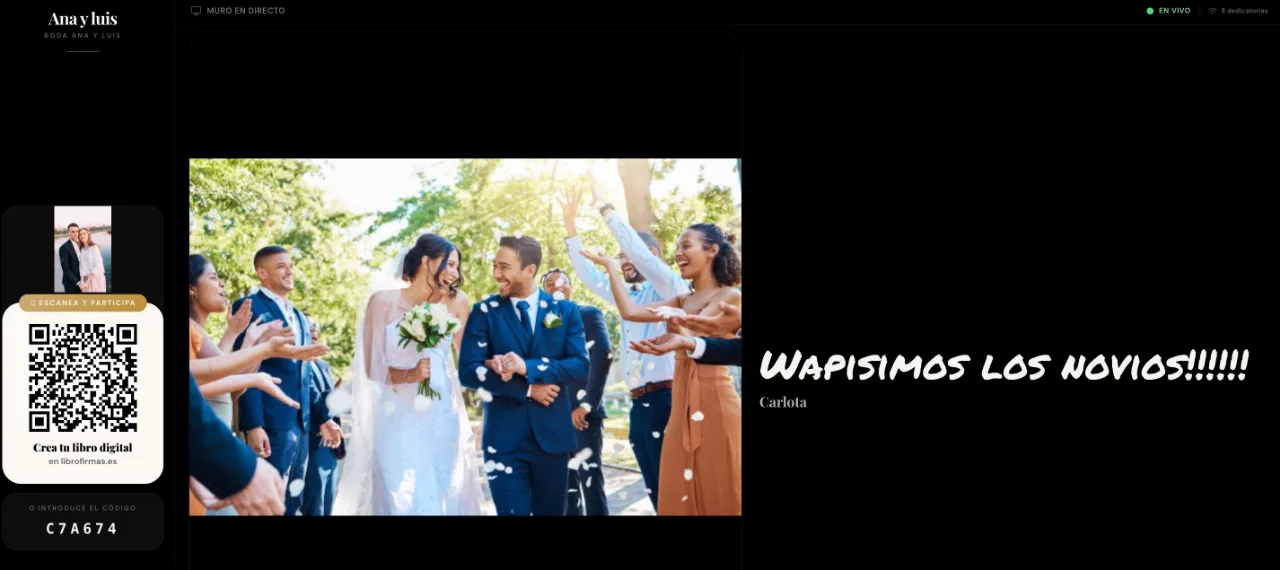
Big screen, live emotion
Real capture of the guest wall with the QR code, a photo and a message on screen during the event.
Want to get straight to it?
Open the wall link on the device that will project, put it in full screen and you’re done. If you’re not next to it, send the link with AirDrop, Quick Share, Messages or WhatsApp from the share menu.
https://librofirmas.es/tv/DEMO_TV_TOKEN
Copy the link and paste it on the device that will show the wall.
- 1Open the link on the TV, laptop, tablet or phone that will project.
- 2Connect that device to the screen with AirPlay, Cast, Miracast or HDMI.
- 3Leave it open: the wall stays active and receives messages live.
Full-screen projection from an iPhone or iPad
To get full screen without Safari’s bars, add the wall to your Home Screen. It’s the cleanest mode when you mirror the screen with AirPlay.
- 1Open the wall in Safari: eventguestbook.com/tv/<code>.
- 2Tap the Share button (the square with an arrow pointing up).
- 3Scroll down the menu and tap “Add to Home Screen”.
- 4Accept the name; you can shorten it to “Wall”.
- 5Close Safari and open the wall from the new icon on your Home Screen.
- 6The wall opens full screen, without browser bars.
Important
Keep the iPhone plugged in during the event. The screen stays on when the browser allows it, but projecting drains the battery fast.
If you lock the iPhone and unlock it again, the wall reconnects automatically and catches up with new messages in a few seconds.
Before you start
What you need to project without hassle
Your event, created
Create your event on EventGuestBook and get your own /tv/<code> link.
TV mode included
Projection (TV mode) is included in every plan, including the free Demo. See pricing.
Internet at the venue
Stable Wi-Fi or 4G/5G data. Further down there’s a plan B if the venue’s connection fails.
Projection options
Pick the option that fits your space
From a smart TV to a professional projector: every realistic setup, from easiest to most advanced.
About AirPlay from an iPhone
Safari on iPhone doesn’t show an AirPlay button inside web pages. That’s Apple’s design choice, not something a website can change. To project the wall from an iPhone, use the system’s Screen Mirroring:
- Open the wall in Safari on the iPhone.
- Swipe down from the top-right corner to open Control Center.
- Tap Screen Mirroring and pick your Apple TV.
An easier alternative is to open the wall directly on a Mac, iPad or smart TV with a browser, where projecting is more stable. Use the “Send the link to a device” button in your dashboard to send yourself the address.
Option 1: TV or screen with a built-in browser
You need: Smart TV with a browser: Samsung Tizen, LG webOS, Android TV, Google TV or Apple TV with a browser app.
Option 2: Laptop connected to a TV or projector by HDMI
You need: Mac or Windows laptop, HDMI cable and a TV or projector with an HDMI input.
Option 3: Chromecast or Google TV
You need: Chromecast plugged into the TV, a phone or laptop with Chrome, and shared Wi-Fi.
Option 4: Apple TV with AirPlay
You need: Apple TV connected to the TV, an iPhone, iPad or Mac with AirPlay, and the same Wi-Fi.
Option 5: AirPlay from an iPhone or iPad
You need: iPhone or iPad, an Apple TV or AirPlay-compatible TV, and the same Wi-Fi.
Option 6: Google Cast from Chrome
You need: Chrome on Mac, Windows or Android, a Chromecast or Google TV, and the same Wi-Fi.
Option 7: Miracast from Windows
You need: A Windows PC and a Miracast-compatible TV or adapter.
Option 8: The venue’s professional projector
You need: The venue’s projector, an HDMI cable and a laptop or media player.
Option 9: A tablet or iPad at the venue
You need: A tablet, iPad or welcome screen; no TV needed.
Option 10: No venue Wi-Fi: use your phone as a hotspot
You need: A phone with 4G/5G data and a laptop or tablet connected to your personal hotspot.
Option 11: Several screens at once
You need: Several screens with a browser, or laptops or players connected to them.
What really works
Which method should I use with my device?
AirPlay and Cast are started from the operating system or the browser. EventGuestBook makes the wall run smoothly, but it can’t start native connections without your permission.
The wall in action
What matters: your guests see it come alive
As soon as someone signs from their phone, the message appears on the wall. That turns the guest book into a shared experience, not a notebook forgotten on a table.
Use it during the cocktail hour, dinner, welcome or photo booth.
If the network is slow, the wall carries on as soon as the connection returns.
Always keep the laptop, tablet or phone plugged in.
Messages and photos on screen
The wall shows new messages live so every guest joins in.
If something fails
Quick fixes for common problems
Event-day checklist
Go through this in the morning and you’ll arrive at setup calmly.
FAQ
Common questions before projecting
Ready for the big screen
Your event deserves this memory.
Create your event, share the QR code and project the messages live. To see how it fits your kind of event, read how it works.
Free Demo plan · Upgrade to Pro whenever you like.