Guest book in Canva or PowerPoint: how to edit your EventGuestBook file
You want the book to have your touch: change a line on the cover, move a photo, match the colors to the wedding. And the EventGuestBook plans mention "Canva" and "PowerPoint" without making it obvious which file you get or on which plan.
Here is what there really is, without promising more than the file does. Spoiler: it is not a Canva project. It is a PowerPoint file that Canva knows how to import.
PDF and PPTX: two different things
They often get mixed up, and each one is for something different:
- The book as a PDF (Pro and Premium). The complete book, laid out, ready to keep or take to a print shop. It is made to be used as is, not edited.
- The book as a PPTX (Premium only). The same book as slides that you can change in PowerPoint or import into Canva.
One detail worth knowing: Canva does not allow a native editable template to be generated from this flow. That is why the file is a PPTX, a format Canva can import, and not a ready-made Canva design.
What a Pro event actually gets
Pro (€49.95 per event, a single payment) includes the complete book as a PDF, the book design with cover and templates, the photo ZIP and the complete digital book. The editable PPTX is not included: it is a Premium feature (€99.95 per event), along with page reordering and the option to remove the EventGuestBook watermark.
If you press the PPTX button on a Pro event, the dashboard explains that the file is part of Premium. If you are still choosing between plans, the full comparison is in free digital guest book or Pro and the current prices are on the pricing page.
How to download the PPTX
- Go to your event dashboard and open the Guest Book card.
- In the downloads, choose Download editable PPT. If the event is not Premium, you will see a lock. The button becomes active once there is at least one message.
- A notice opens ("Edit your book afterwards") explaining that this is a version to upload to Canva and edit there. Press Download compatible file.
- A
.pptxfile is downloaded to your device.
It is the same file for PowerPoint and for Canva.
What is inside the file
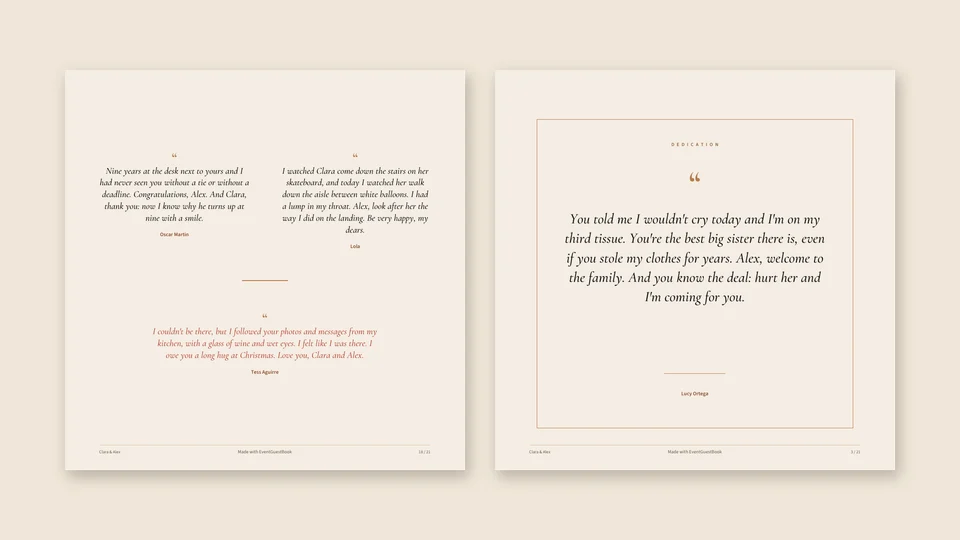
The book comes in a square format, 21 × 21 cm (about 8.3 in), with one slide per page: cover, opening page, message pages (several messages per slide) and a closing page.
Inside, the texts are PowerPoint text boxes, so you can edit them like any other. The photos are images you can move, resize or replace, and the frames and backgrounds are shapes. What is not there: the QR code, and the voice notes, which only appear as a label on the message.
Opening it in PowerPoint
Double-click the file. If PowerPoint opens it in Protected View because it came from the internet, click "Enable Editing." From there it is a normal presentation: edit the texts, replace images, change colors, reorder or delete slides.
Importing it into Canva
- Go to the Canva home page.
- Click Upload or Import file.
- Select the PPTX you downloaded.
- Wait a few seconds while Canva loads it.
- When it appears in your designs, open it.
Canva converts the file into a design of its own, and the result will not necessarily be identical to the original. If something goes wrong, three quick things to try: download the file again, use a computer instead of a phone, or try another browser.
What you can edit and what you cannot
You can change the cover text and subtitle, the names, the wording of the messages, the colors, the photos, and the order or number of slides.
Two things to know:
- The file is a snapshot. What you change in PowerPoint or Canva does not go back to EventGuestBook, and if more messages arrive later you will need to download a new file and redo your changes.
- The PDF is something else. The PDF keeps the platform's layout. The PPTX is an equivalent but editable version, with its own composition.
Limits: fonts, positions and compatibility
This is what can vary from one program to another:
- Fonts. The file uses Georgia and Arial for the cover and headings, and for each message the font the guest chose, such as Segoe Print, Comic Sans MS, Courier New, Nunito or DM Sans. If the program does not have one of those fonts, it substitutes another, and the text may take up more or less space.
- Line breaks. A font change can make a long message wrap differently or spill out of its card.
- Positions. On import, some elements may end up slightly shifted.
- Photo quality. If the original was small, enlarging it on the page will make it look less sharp.
That is why we do not promise a perfect import. We promise an editable starting point that you need to review.
What to check before printing
- Names and dates written the way you want them.
- Fonts and line breaks on every slide with long messages.
- No text or photo spilling out of its box.
- Enough margin: print one test page before ordering the rest.
- Photos that look sharp at paper size.
When it is ready, export from PowerPoint or Canva to PDF and take that to the print shop. There is more on that step in how to print your digital guest book.
Frequently asked questions
Do I get a native Canva project?
No. You get a PPTX that Canva can import. Canva does not allow a native template to be generated from this flow.
Can I edit the book on the Pro plan?
The PPTX is a Premium feature. Pro includes the PDF and the book design with cover and templates.
Can I remove the EventGuestBook watermark?
With Premium you can remove the EventGuestBook watermark from the PDF and from the editable file.
Next step
If you do not have the book yet, create your event for free and check the result in the dashboard before choosing a plan. And if you already know you want to retouch it, compare the plans on the pricing page.
Related articles
How to print your digital guest book: from PDF to paper, step by step
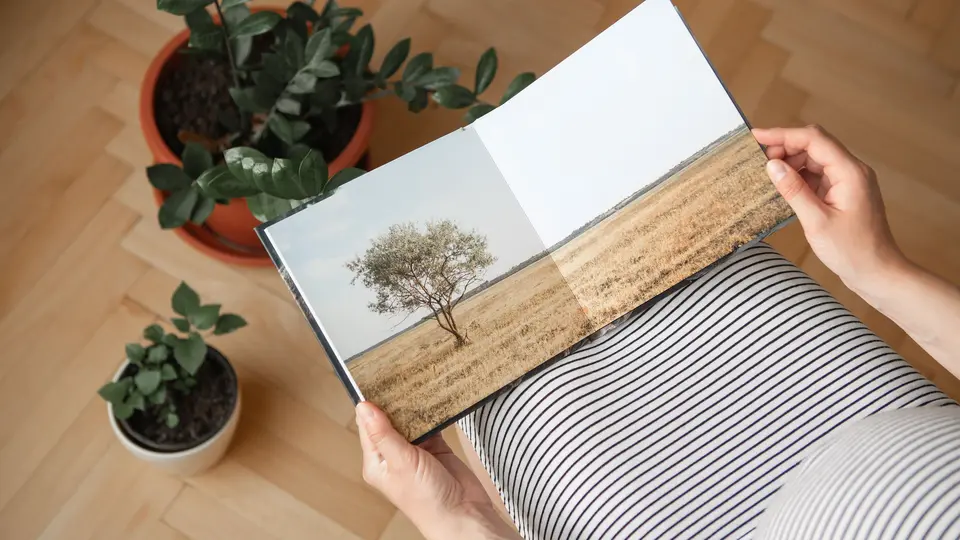
You have the PDF of the book and you want it on paper. Page size, what to ask the print shop, what to check before printing and how to edit the book first if you need to.
6 min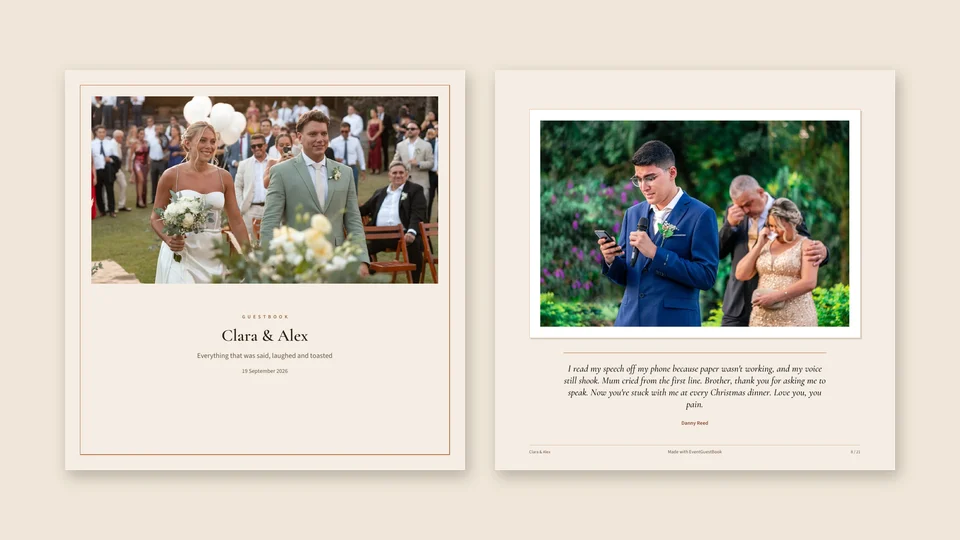
Free digital guest book: what it includes and when Pro is worth it
The free plan is a real trial, but it has a clear cap. What Demo includes, what changes with Pro and how to decide before you hand out the QR code.
6 min
How to collect photos and messages from lots of people without starting a group chat
A new group chat looks like the quick way to gather photos and messages, and it nearly always ends up being the problem. Real alternatives and when each one makes sense.
7 min